ATM11 Server Config Files: What to Edit and How to Do It Safely
Short answer: the files you configure on ATM11
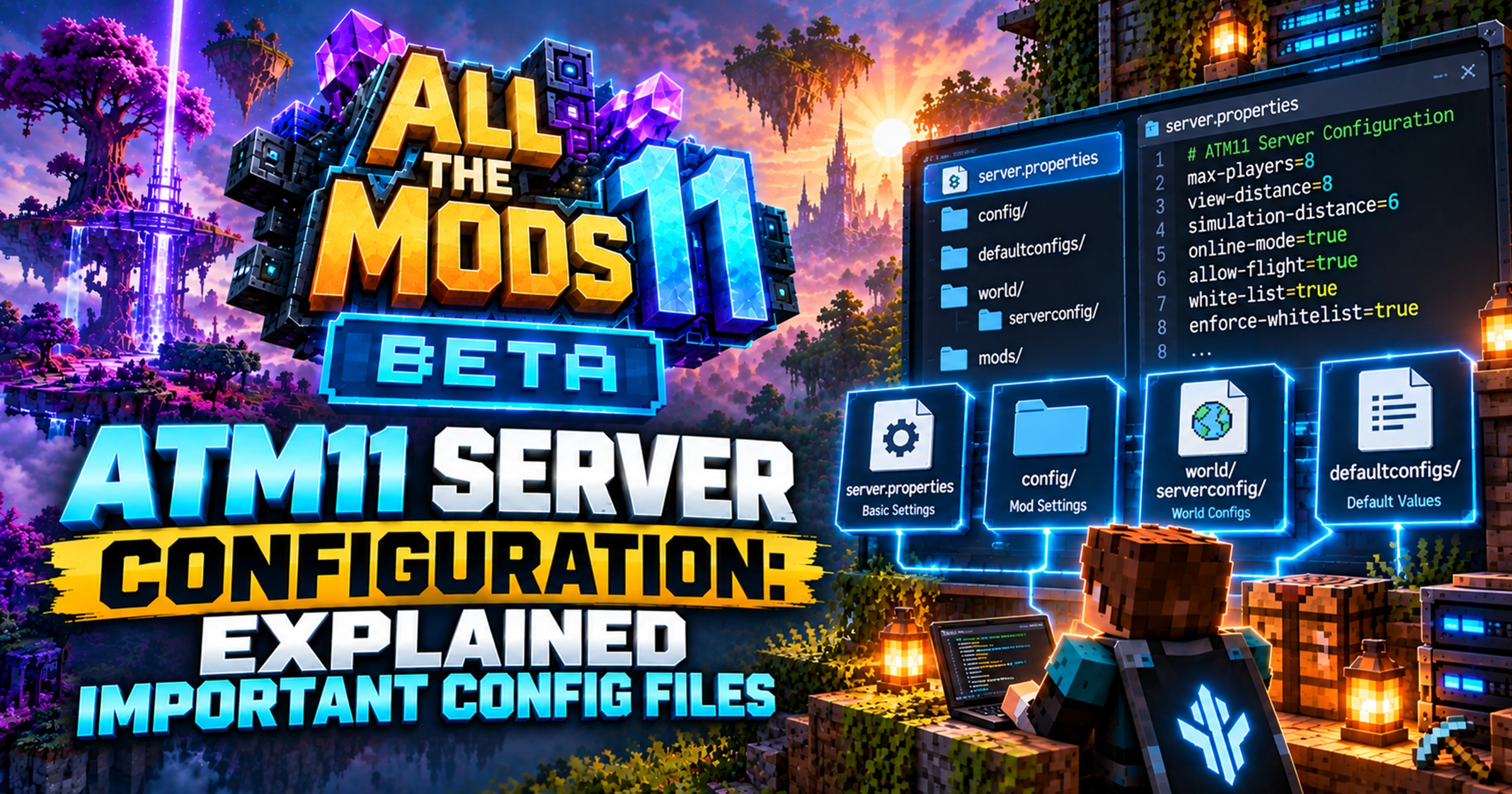
On an ATM11 server, three areas matter most: server.properties for basics like player count and view distance, the config/ folder for mod settings, and the per-world server configs. You edit them in the dashboard's file manager, take a backup first and restart afterwards. In the beta, change as little as possible.
This guide explains what each file does, what caution a modpack requires and how to test changes cleanly. We only name concrete config keys of individual mods where we could verify them.
Golden rule: change as little as possible in a modpack
ATM11 ships as a tuned package. The developers adjust configs between versions. The changelogs contain entries such as the Mahoutsukai config being aligned with ATM10 or recipes being corrected. If you change a lot yourself, an update can overwrite your adjustments or clash with new defaults.
So three rules apply: change only what you truly need, document every change and back up beforehand. If you alter the mod list in the mods/ folder, client and server no longer match. Keep that folder untouched wherever possible. More on the consequences in fixing ATM11 crashes.
Where you edit
All files are in the store dashboard's file manager. There you can upload, edit and extract. To edit, open the file in the editor, change the value, save and restart the server using the start/stop/restart controls. Many settings only apply after a restart.
Before each change, create a backup in the Backups section and lock it. That way you can go back if something breaks. The routine is covered in detail in ATM11 update and backup. Without a backup, please do not touch world files.
Overview of configuration locations
| Location | Purpose | Caution |
|---|---|---|
server.properties |
basics: view distance, player count, whitelist | yours to edit, low risk |
config/ |
mod settings (files per mod) | may be adjusted in updates |
defaultconfigs/ |
defaults for configs created per world | only affects new worlds (mod dependent) |
World folder, subfolder serverconfig/ |
server configs of individual mods per world | change only after a backup |
mods/ |
the mod files themselves | do not modify |
Whether each of these folders exists exactly like this in your version, you can see in the file manager. The structure follows common NeoForge server patterns, and the exact layout can change during the beta.
server.properties: the most important values
You know this file from any Minecraft server. For ATM11, a few fields matter especially. For self-hosters, ModReady names conservative values:
view-distance=8
simulation-distance=6
max-players=8
online-mode=true
allow-flight=true
These are starting points for a small group. view-distance and simulation-distance strongly affect load, see fixing ATM11 lag. online-mode=true verifies player accounts and should stay on for a public or semi-public server. allow-flight=true stops players from being wrongly kicked when using flight mods or flying gear. The meaning of every field is in server.properties explained.
For private groups, add white-list=true and enforce-whitelist=true. How to secure your group with that is described in playing ATM11 with friends.
The config/ folder: mod settings
The config/ folder usually holds one or more files per mod, often in .toml format, sometimes .json or .cfg. They contain options like drop rates, machine output or world generation. What a typical TOML file looks like is shown here, with made-up values for illustration:
# Example structure, not a real ATM11 file
[general]
  enableFeature = true
  maxItemsPerTick = 64
Concrete keys differ per mod and version. So always read the comments in the file itself, since they explain the allowed values. When unsure, look up the documentation of the respective mod, for example on CurseForge or Modrinth. Change only one value at a time, restart and test.
Per-world server configs
Some mods store their server settings in the world folder, usually in the serverconfig/ subfolder. The upside: they apply to exactly that world. The downside: changes to the global defaults (defaultconfigs/) no longer affect an existing world, because the file has already been created.
If you want to change a value for a running world, edit the file in the world folder. Stop the server first, take a backup and restart afterwards. Whether and where a mod puts its server config is stated in its documentation.
Java arguments and memory
When self-hosting, you control memory through startup parameters, for example in a file like user_jvm_args.txt with -Xmx and -Xms. WiseHosting names -Xmx12G -Xms10G as an example for 12 GB. At WZH, memory is defined by the plan you book: you choose Cloud L (8 GB) or Cloud XL (16 GB) and can change plans.
Which startup parameters your server uses, you can see in the settings and in the file manager. If you are unsure, leave them alone. A heap value that is too large relative to the plan can do more harm than good. Background in ATM11 RAM requirements.
Test changes safely
A simple, repeatable routine protects you from needless errors:
- Create and lock a backup
- Stop the server
- Change exactly one file or value
- Start the server and watch the browser console
- Test briefly with your group that the desired behavior occurs
- Note the change so you can find it again after an update
If an error occurs, restore the backup or undo exactly that change. On startup problems, read logs/latest.log.
Beta pitfalls with configs
In a beta, config structures can change between versions, files get renamed or values are dropped. After an update you should therefore review your adjustments. Comparing the old and new file helps before you re-enter your values.
Also, the developers' GitHub repository and the ATM Discord are where you find hints when a setting was changed on purpose. If you are unsure about a key, ask there or open a ticket with us. We do not advise changes we cannot verify.
Get started
Take a backup first, begin with server.properties and change only what you need. If you do not have an ATM11 server yet, find it on the ATM11 page. The overview of renting is in All the Mods 11 server hosting.
FAQ
Where do I find the config files of my ATM11 server?
In the dashboard's file manager, mainly in the config/ folder and in server.properties. Server configs of individual mods are often in the world folder under serverconfig/.
Do I have to restart the server after a change?
In most cases yes. Many settings are only loaded at startup. Check the documentation of the respective mod.
Can an update overwrite my config?
Yes, that is possible. So save your changes and check them after every update.
May I add or remove mods?
Technically yes, but then the client no longer matches the server. On a modpack server, keep the mods/ folder unchanged wherever possible.
How do I restore changes?
Through the backups in the dashboard. Create one before every change and lock it.