Minecraft server.properties Explained: The Most Important Settings for Your Server
Introduction
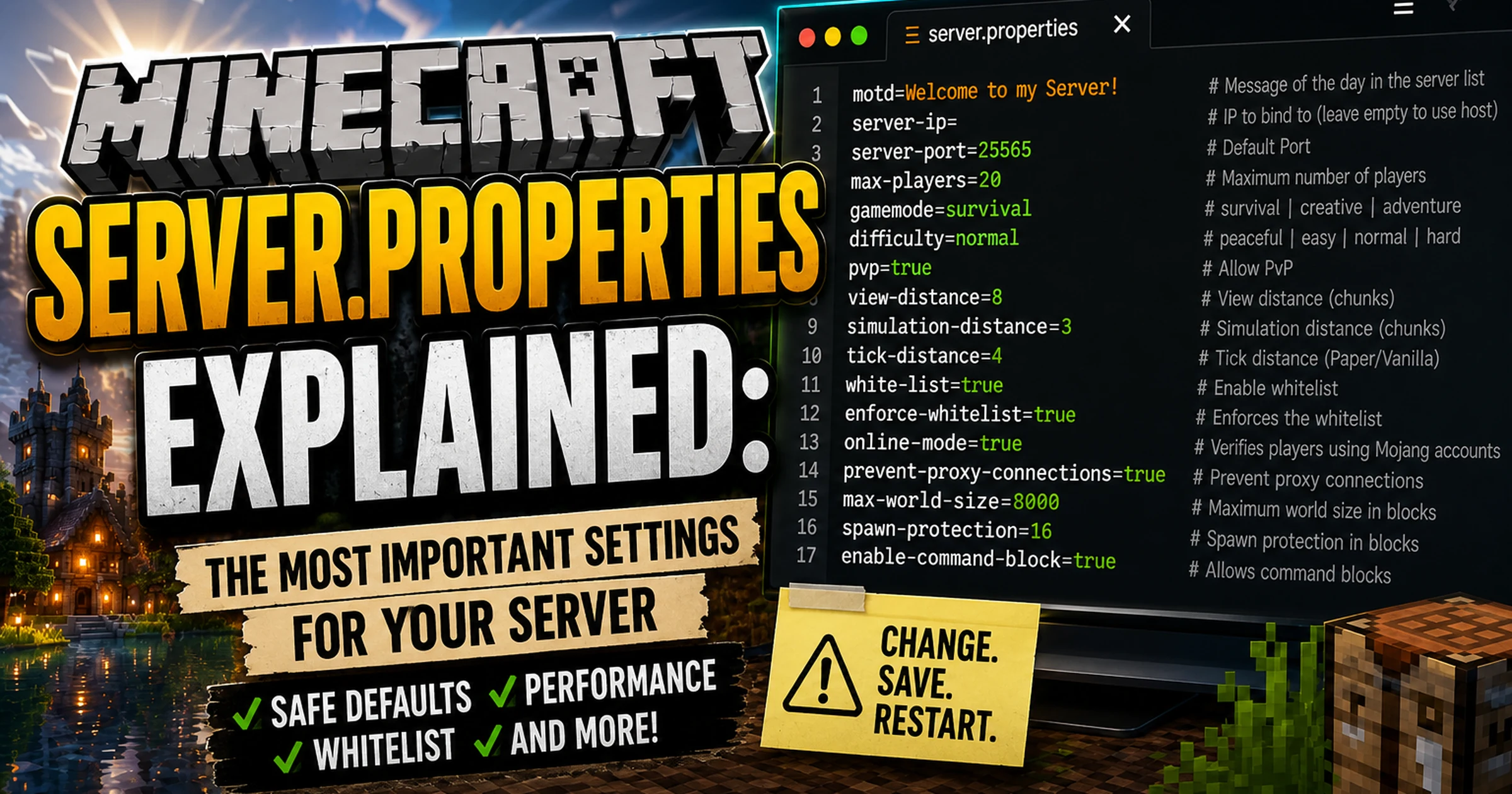
Every Minecraft server has a server.properties. It sits in the root directory and determines how your server behaves toward players. Most admins open it once, change three things and forget about the rest. That is a shame, because a few lines further down there are options that decide how your server performs, how secure it is and how it feels to play on.
This guide walks you through the most relevant settings in order, explains what they do and gives you safe starting values. If you are still learning the basics, first take a look at "Paper vs. Vanilla vs. Spigot: Which Minecraft Server Software Is Right for You?", because the behavior differs slightly depending on the software.
Basic identity
Three values at the top of the file identify your server. They are self-explanatory, but they come with a few pitfalls:
- motd: The line players see in the server list. The default is "A Minecraft Server". Color codes work with
§, for example§6Welcome to my server. - server-ip: Leave this value empty if you are using a hosted server. The host assigns the IP automatically. Setting your own value tends to cause startup problems.
- server-port: 25565 is the default. Only change it if you run several servers in parallel on one machine or your provider assigns you a different port.
- max-players: The maximum number of players. Set this value honestly. 200 players with 4 GB of RAM and a view distance of 10 will never be fun, and guests will notice immediately.
Game mode and difficulty
Four values control how your world feels:
- gamemode:
survival,creative,adventureorspectator. Survival is the normal case. If you want a pure building server, switch tocreative. - difficulty:
peaceful,easy,normal,hard.normalhas proven itself for community servers. Onhard, players die faster, which leads to harsher discussions about PvP and griefing. - hardcore:
trueputs the server into hardcore mode. Players only have one life; on death the world is locked. That is a deliberate decision and not something for everyday play. - pvp: Controls whether players are allowed to damage each other. For pure survival servers:
true. For building servers:false.
Performance knobs
Three values have a direct impact on how much load your server generates. They deserve special attention:
- view-distance: The default is 10. That is okay for small servers, but too much for large survival worlds with 30 players. Every additional chunk costs RAM and CPU. Values between 6 and 8 are a good compromise between visibility and performance on community servers. On pure modpack servers even 5 can be worth it.
- simulation-distance: The default is 3. This value determines how far around players mobs, redstone and other logic stay active. Reducing it to 3 or 4 saves a noticeable amount of CPU without players perceiving the world as "empty".
- tick-distance: The range in which chunks are ticked. The default differs between Paper and vanilla. Reducing it saves CPU, but also disables distant farms. On Paper this setting works differently than in vanilla.
You can find a complete performance overview in the article "Minecraft Server Lagging? 10 Causes and How to Fix Them". The server.properties is only one of several knobs.
World protection and whitelist
These settings decide who gets onto your server in the first place:
- white-list: Set this to
trueas soon as your server should not be publicly reachable. Players can only join if their name has been added towhitelist.jsonorops.json. By the way, when you enable the whitelist for the first time, you lock yourself out. You have to add yourself in the console withwhitelist add your-name. - enforce-whitelist: Disconnects players who are not on the whitelist, even if the whitelist is activated afterwards. Useful for public servers that temporarily switch to invite-only.
- prevent-proxy-connections: Set to
trueto block VPN and proxy joins. Not perfect protection, but it helps against the crudest trolling attempts.
You can find more on this topic in "Securing Your Minecraft Server: 7 Tips for Every Admin". The whitelist alone is not enough for security, but it is an important building block.
Network and limits
These settings are more technical, but important:
- online-mode:
truechecks whether players join with a valid Minecraft account. Only set this tofalsefor private whitelist servers, for example for LAN parties. - player-idle-timeout: Players who are inactive for a certain amount of time get kicked. Value in minutes. On communities where AFK farms are allowed, it is best to leave it at
0. - max-world-size: Sets a world border in blocks. The default is 29999984, which corresponds to an open world. For survival servers with 30 players, 5000 to 8000 is often enough. A sensible border saves RAM and reduces the load from distant chunks.
- max-tick-time: The maximum time a single tick may take before the watchdog restarts the server. Default is 60000 milliseconds, which is one minute. Lower values are dangerous on community servers because a lag spike can lead to a crash.
Little-known but useful values
Three options are often overlooked, but they are practical:
- broadcast-console-to-ops: Sends console output to all operators. Useful for small rounds, rather spammy with many ops.
- enable-command-block: Allows command blocks. For survival: usually
true. For pure building servers: feel free to usefalse. - spawn-protection: Protects the spawn area in blocks from being modified by non-ops. Default is 16. If you have a lobby or a tutorial at spawn, you should set this value deliberately.
What you should not touch
A few lines look tempting but are reserved for hosts:
- server-ip and server-port should not be changed on a managed server because your provider defines the bind address.
- rcon without port, password and firewall is a security risk. If you need RCON, read up thoroughly beforehand.
- enable-query: Lets external services read player counts. Practical for status pages, but it also opens up a small attack surface.
Applying changes cleanly
The server.properties is read on startup. So you can edit it at any time, but changes only take effect after a restart. For changes to whitelist settings, a reload via the console with whitelist reload is enough. For performance values like view-distance this also works without a restart, although a server reload is still the cleaner option.
Conclusion
The server.properties is not rocket science, but it is not trivial either. Anyone who consciously works through the twenty most important values once ends up with a server that feels right to players without the CPU burning out. Start with view-distance, max-players, white-list and simulation-distance. The rest grows with your server.
If you are looking for hosting where the most important settings are already sensibly configured and you do not have to dig through config files every time, take a look at WZH Server. There you get a preconfigured Paper stack with sensible defaults, without starting from zero.