Prominence 2 Server Crash Fix: Find the Cause and Get Back Online
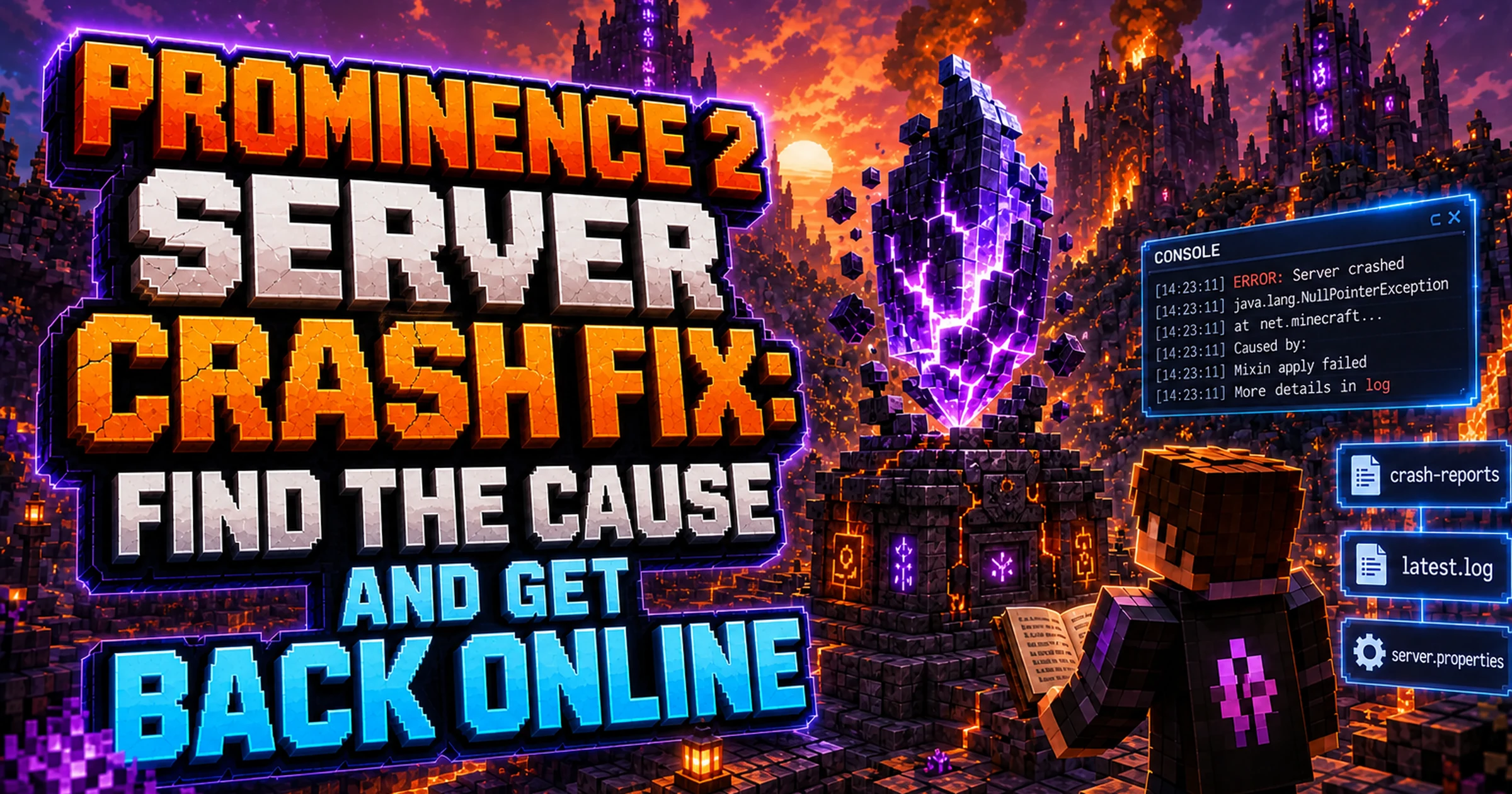
Prominence 2 server crashing: how to approach it
If your Prominence II server crashes or will not start, first open the browser console in the dashboard, then read logs/latest.log and the crash-reports/ folder. The most common causes are a wrong version mix, too little memory, altered mod files and problems in the world.
The pack runs on Minecraft 1.20.1 with Fabric and loads hundreds of mods. With that many building blocks a crash is not the end of the world, and it can usually be narrowed down. This article walks you from the error message to the fix, focused on Prominence II. If your problem is stutter rather than crashes, read Prominence II lag.
Where to find the error message
Every important file is reachable in the store dashboard, no extra software needed. With WZH Server you only need a browser.
| Location | Contents |
|---|---|
| Browser console | Live output during startup and operation |
logs/latest.log |
Log of the current or most recent run |
crash-reports/ |
Detailed reports after a hard crash |
| File manager | Open, view and download these files |
Open latest.log and jump to the end. Search for the words ERROR, Exception, Caused by and Mixin. The Caused by line often names the real cause, while the long stack trace above it only describes the path there. A crash report also includes a list of loaded mods, which helps a lot with support requests.
Cause 1: wrong or mixed versions
In its Prominence II guide, Berrybyte explicitly warns against mixing files from the 3.9.x and 4.0.x lines. The pack's issue tracker also contains reports of talent tree login errors after mismatched or modified installs.
This typically happens when a client uses a different pack version than the server, or when someone copied files by hand. So check that the server and every client run exactly the same version. At WZH Server that is currently 3.9.27. If in doubt, reinstall the client cleanly through CurseForge or Modrinth.
Cause 2: too little memory
A pack this size needs memory. Berrybyte lists memory problems as their own category of trouble and advises more RAM. At WZH Server, Prominence II can be booked with Cloud L (8 GB) or Cloud XL (16 GB). Smaller plans do not exist for it.
Typical signs of a memory shortage: a process that suddenly ends without a clear error, an OutOfMemoryError in the log, or a server that gets slower over time and then stops. In that case a larger plan or a lower view distance helps. More in Prominence II RAM requirements.
Cause 3: mod conflicts and mixin errors
Fabric mods hook into the game code through so-called mixins. If a mod does not fit the Minecraft version or another mod, the log shows a line like Critical injection failure or Mixin apply failed. One example from the Forge forums: a player reported a startup abort of their Prominence 2 client with an injection error in the Necronomicon mod. The diagnosis there was that the mod was outdated or did not fit.
That example concerns a client, but it shows the pattern: the mod name is in the error. On a WZH server the pack comes preconfigured and installed. If a mod conflict shows up in your log, the cause is usually a manual change or an incomplete update. Do not remove mods on a hunch. Restore the state from before the change.
Cause 4: problems in the world
Some crashes only happen when certain chunks load. The pack's changelogs mention, for example, a crash when entering chunks with glitched structures that was fixed by removing a mod. Errors like this can be solved with a pack update.
Berrybyte also lists ticking exceptions with Create machines. The advice: do not simply break blocks, restore a backup first. If the server always crashes at the same spot, note the coordinates from the log, back up the world and search the issue tracker for similar cases.
Step by step: get the server running again
- Stay calm, delete nothing. First download
latest.logand the newest crash report from the file manager. - Read the error. Look for
Caused byand mod names. Note the pack version. - Check versions. Do the server and clients match?
- Check memory. Is there an
OutOfMemoryErroror signs of one? - Undo recent changes. Did you edit files, apply an update or change settings?
- Restore a backup. In the dashboard under Backups you can bring back an earlier state.
- Reinstall only as a last step. It is possible in the settings but can cost you the world, so save it first through a backup download.
- Open a ticket. Attach the log and the crash report.
What belongs in a support ticket
A good ticket saves time. State the pack version, when the crash happened, what you changed beforehand and how many players were online. Attach latest.log and the crash report. If one particular player triggers the crash, name them.
Preventing crashes
Most crashes are avoidable. Stick to these rules:
- Do not add or remove mods.
- Update only with a click in the dashboard and only after a backup, see updating Prominence II with a backup.
- Keep client and server on the same version.
- Choose view distance and player count to match the plan.
- Test configuration changes one at a time. An overview is in configuring a Prominence II server.
For general safeguards, also see Minecraft server backups.
Client crashes are a separate topic
Not every crash comes from the server. Mod authors' issue trackers contain reports of crashes at client startup with Prominence II, sometimes before the Mojang loading screen. Cases like that lie on the player's computer, for example with mod versions, Java or the launcher. The server is not involved.
A quick test: if another player can join without problems, it is the client. The affected person should reinstall the pack cleanly through CurseForge or Modrinth, check memory and evaluate the client crash report.
Next step
Once your server runs stably, back it up regularly. If it keeps hitting its limits, look at the Prominence II offer and check whether Cloud XL fits better.
FAQ
Where do I find the crash report of my Prominence II server?
In the dashboard file manager in the crash-reports/ folder. The log of the last run is in logs/latest.log. You can download both.
My server will not start. What do I do first?
Read the browser console and latest.log. Check whether a change or update came before it, and restore a backup if in doubt.
Can I simply delete a crashing mod?
You should not. The pack is tuned as a whole, and according to the issue tracker modified installs lead to follow-up problems. Use a backup instead or contact us by ticket.
Can too little RAM cause crashes?
Yes. For Prominence II only Cloud L and Cloud XL can be booked because the pack needs a lot of memory. With a shortage, a larger plan or a lower view distance helps.
Does a client crash affect the server?
Usually not. A crash at client startup is on the player's computer. Check whether other players can join normally.
Quellen
- https://forums.minecraftforge.net/topic/153710-prominence-2-modpack-crashing/
- https://berrybyte.net/wiki/games/minecraft/prominence-ii-server
- https://github.com/nvb-uy/ProminenceII-HasturianEra/issues
- https://modrinth.com/modpack/prominence-2-fabric/version/3.1.50hf2
- https://www.curseforge.com/minecraft/modpacks/prominence-2-hasturian-era