Technical Electrical Server Config: Files and Options Explained
Configuring Technical Electrical: where to start
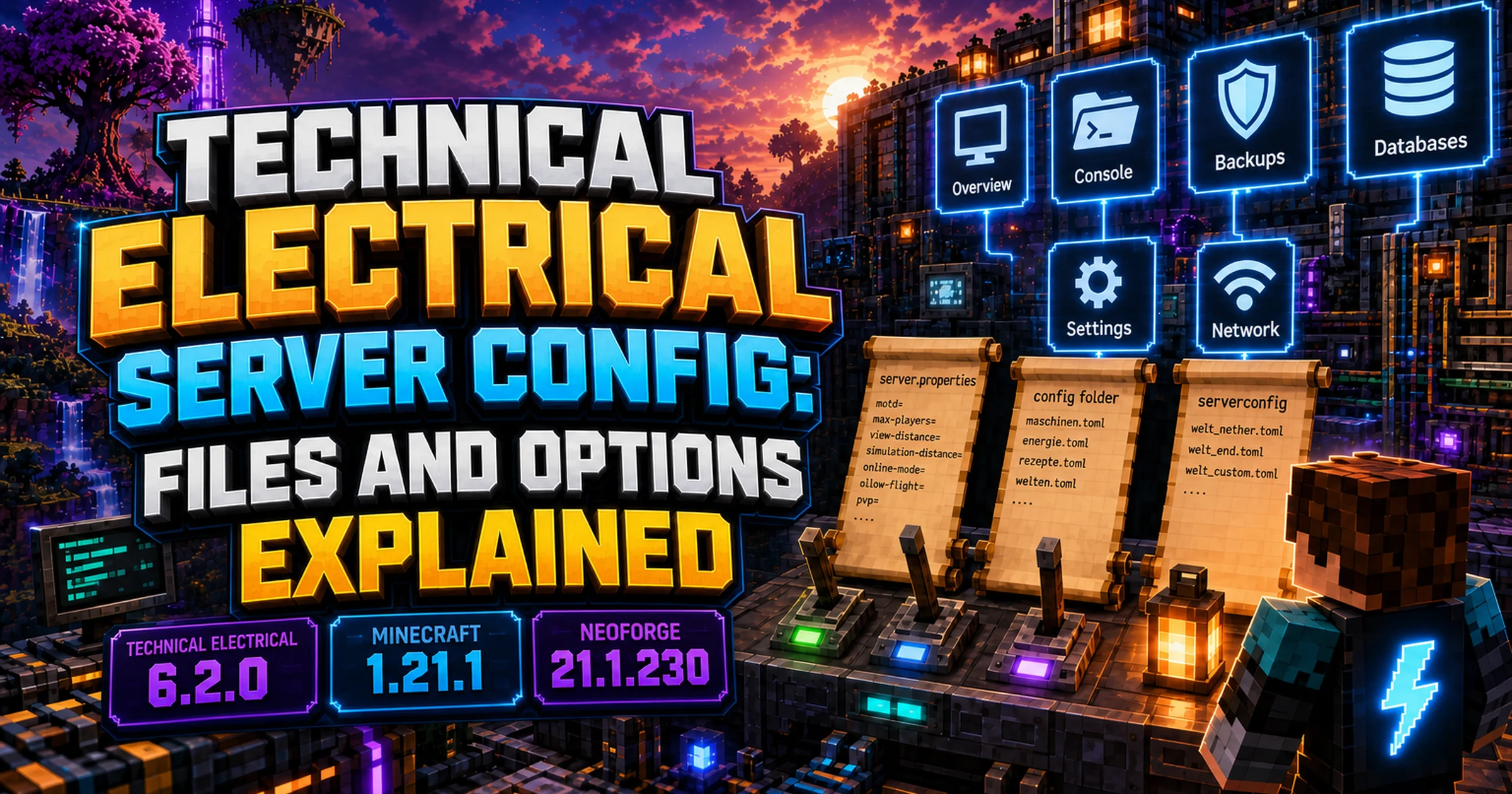
On a Technical Electrical server you mostly edit three areas: server.properties for basic options, the config folder for the settings of individual mods, and the world/serverconfig folder for server-side configuration that NeoForge stores per world. You do all of it in the file manager of the store dashboard, then restart the server.
Restraint matters. With over 190 mods, one wrong option quickly changes more than you expect. Change only one thing at a time, take a backup first, and check the log afterwards.
What the pack repository shows
The author publishes the pack contents on GitHub, described as open source to reduce bugs and enable contributions. The structure contains the folders config, mods, resourcepacks, resources and shaderpacks. The config folder includes lootr-common.toml, neoforge-server.toml, vampirism-balance.toml, vampirism-common.toml, vampirism-server.toml as well as the folders defaultoptions and fancymenu.
This is only an excerpt from the "Whimsical-Wonders" branch that we saw, and not necessarily the state of version 6.2.0. Your server generates additional files for further mods on first start. Open the config folder in the file manager and see what is actually there instead of relying on a list.
The three levels at a glance
| Location | Affects | Typical use |
|---|---|---|
server.properties |
basic server behavior | player count, view distance, whitelist, difficulty |
config/ |
settings of individual mods | mod-specific options such as loot or balance |
world/serverconfig/ |
server-side mod configs per world | rules that apply per world |
The exact split is a NeoForge convention described in the NeoForge documentation. Which mod writes its values to which level is up to the mod itself.
server.properties: the basics
The most important options for a modpack are:
max-players=8
view-distance=10
simulation-distance=8
white-list=true
enforce-whitelist=true
spawn-protection=16
The values are examples, not a pack recommendation. view-distance determines how many chunks players see, simulation-distance how many chunks around them are actively processed. A lower simulation distance saves processing time, which helps tech packs with many machines. How the options work individually is explained in server.properties explained.
Edit the file while the server is stopped so changes are not overwritten, and restart afterwards. Whitelist details are in the guide to playing Technical Electrical with friends.
The config folder: mod settings
The config folder holds the configuration of the mods, mostly as .toml files. An example from the repository is lootr-common.toml. Lootr is a mod that generates chest loot separately for each player. Whether and how it is used in the pack becomes clear from the file and the game. Read the comments in the file, they usually explain the options better than any guide.
How to proceed when changing something:
- Create a backup in the dashboard.
- Stop the server.
- Open the file in the file manager and change exactly one option.
- Save the file and start the server.
- Check the console and
logs/latest.logfor errors.
For .toml files watch the syntax: strings are in quotes, numbers are not, booleans are true or false. A typo can prevent startup. You will see errors in the log, as described in Technical Electrical server crashes.
neoforge-server.toml
The repository contains a file neoforge-server.toml. It belongs to the configuration of NeoForge itself. We do not invent its concrete keys here, because they depend on the NeoForge version. Open the file on your server and read the comments. Change it only if you know what an option does, and afterwards test with /neoforge tps that the server stays stable.
Server config per world
NeoForge stores server-side configuration in the serverconfig folder inside the world. If you change values there, they apply to that world. How this relates to the files in config is described in the NeoForge documentation. A common stumbling block is that a value was set in config, but the mod uses the value from serverconfig. When in doubt, search for the option name in both folders.
What you should better leave alone
- Files whose purpose you do not know, especially for mods that define blocks or recipes.
- Several options at once, because afterwards you do not know which one caused the problem.
- Client files such as menu or window title configs on the server.
customwindowtitle-client.tomlandfancymenuare client-side judging by their names. - Mod files in the
modsfolder. Do not swap mods without knowing the dependencies.
Performance options with care
If your server lags, the first move is usually simulation-distance. Further options in individual mods can help, but we have not checked for every mod which values make sense. Begin with measuring and read the article on lag and TPS in Technical Electrical. Only then change mod configs, and one at a time.
After updates: check configs
With pack updates, configuration files can change. So save your changes before the update, for example with a backup or by downloading the files. After the update, compare whether your adjustments still apply. The process is described in updating Technical Electrical with a backup.
Document your changes
Keep a short change log, for example in a text file or in the group chat: date, file, changed option, old and new value. With a modpack of over 190 mods you will not remember every adjustment after two weeks. The log helps with troubleshooting and with carrying your settings over after an update.
It is also useful to download a copy of the original file before every change. The file manager in the dashboard allows upload, editing and extracting, so you can put copies back quickly. If a change fails, you have the old state back in seconds.
Also keep your group informed. If you lower the simulation distance, for instance, players notice that distant machines work more slowly. A short message prevents questions and confusion.
Conclusion and next step
The most important rule for configuring is: backup, one change, test. If you do not have a server yet, you can order the pack on the Technical Electrical server page and edit the files directly in the dashboard.
FAQ
Where do I edit the config files?
In the file manager of the store dashboard, in the config folder and in world/serverconfig. Then you restart the server.
Can I change options without breaking the pack?
Yes, if you proceed carefully: backup, one change, test. Leave unknown options alone.
What is Lootr?
Lootr is a mod that generates chest loot per player. The file lootr-common.toml is in the pack repository.
Are all files from the repository on my server?
Not necessarily. Check in the file manager what your server really contains.
What happens with an error in a toml file?
Startup can fail. The log usually names the file and line. Undo the change or restore the backup.